Record Supplier Invoices, Expenses, and Credits
Record supplier documents with correct references, tax, source receipts, and payable effects.
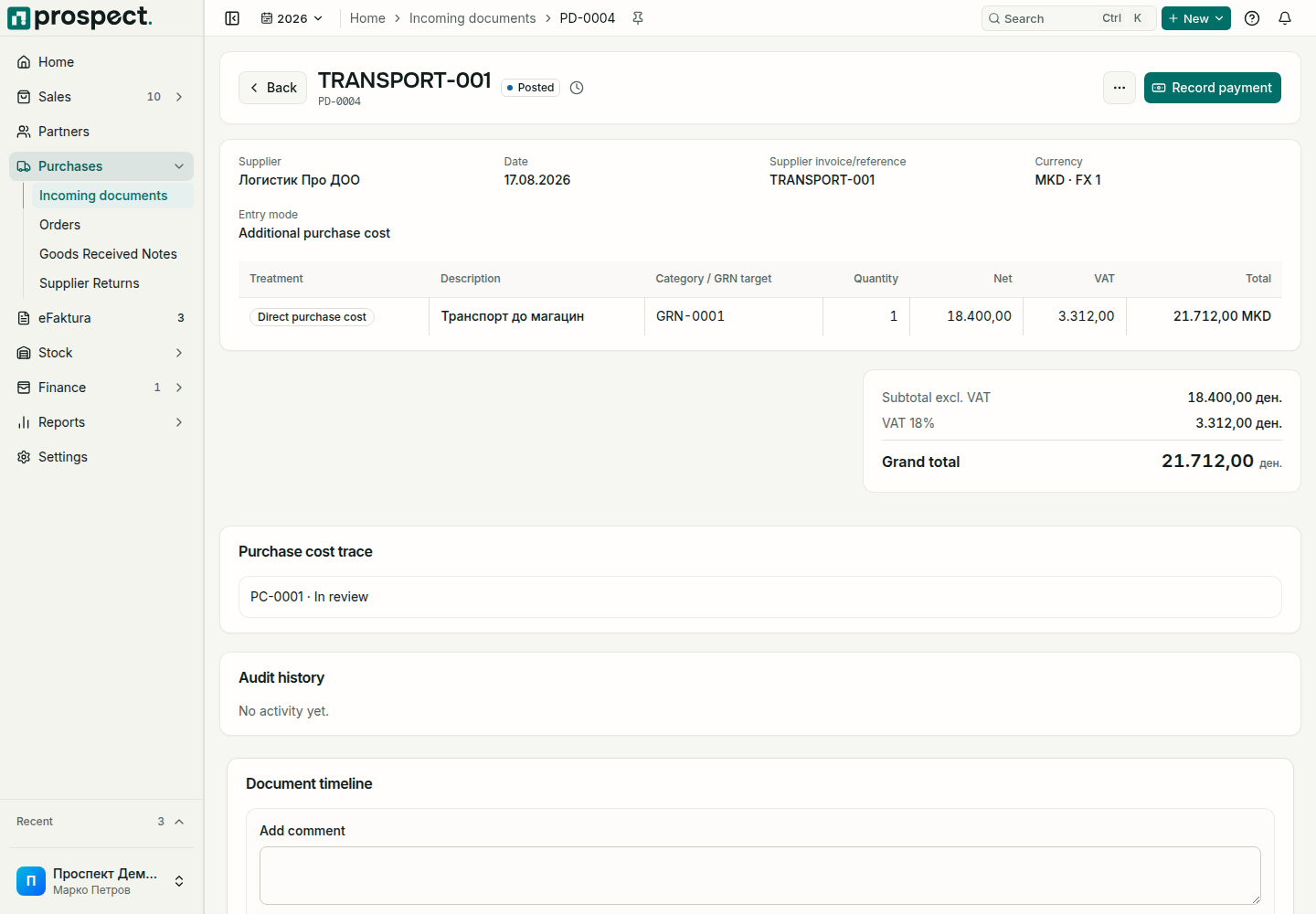
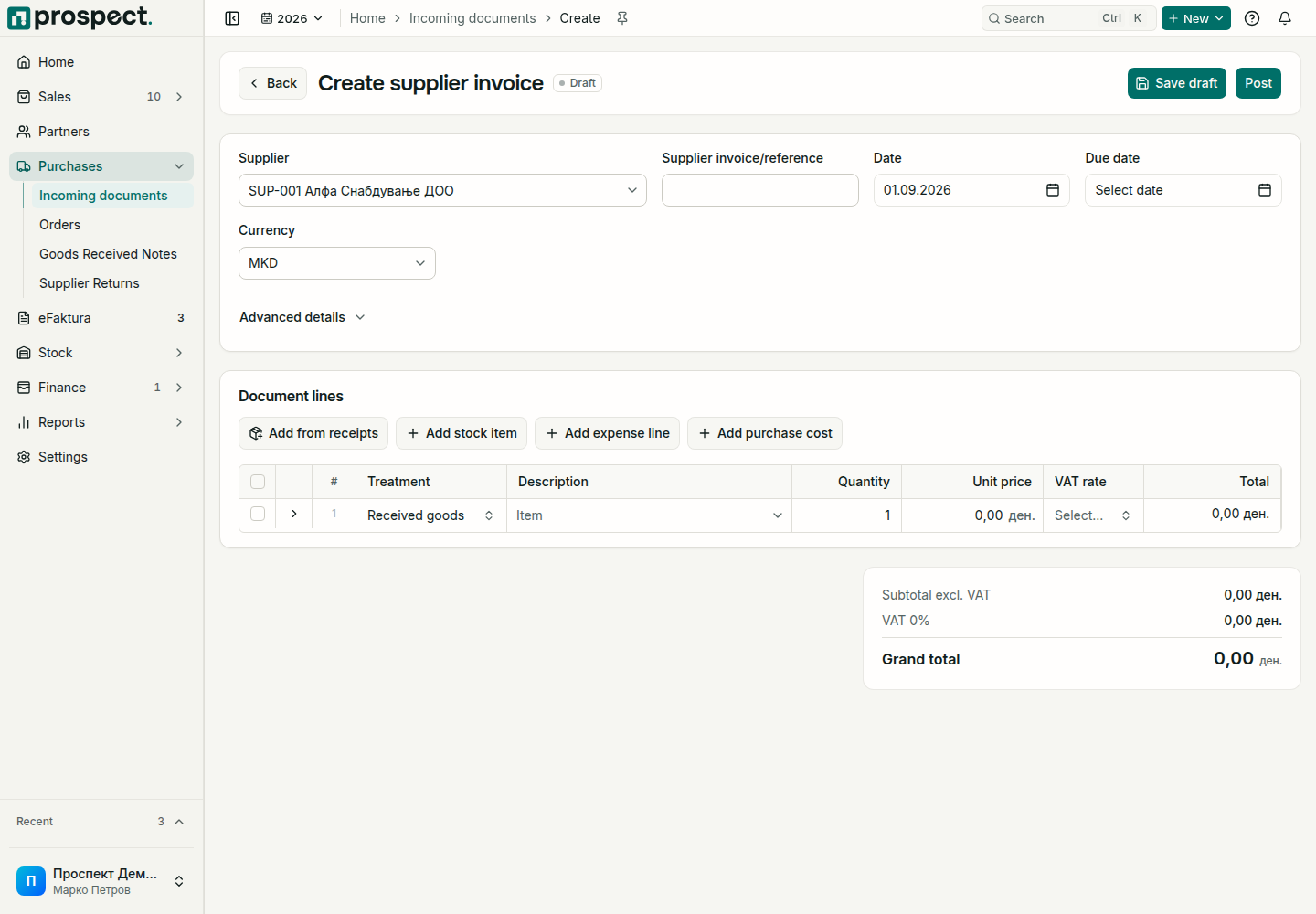
Open Purchases → Incoming documents and choose Create supplier invoice; the arrow beside it offers the other kinds: invoice, expense, or supplier credit.
Select the supplier and enter the supplier's document number, issue date, due date, currency, and Prospect series.
For stock purchases, select eligible order or receipt lines. For expenses, enter the expense category and service lines.
Confirm quantity, price, VAT, discount, net, VAT, and gross totals.
Supplier references should be unique and match the received document. Workflow policy may require receipt before billing stocked goods. An inbound eFaktura can create a local draft after partner, item, and tax mappings are resolved; review it before publication.
Use a supplier credit or return workflow for corrections instead of negative payment entries.
Supplier invoices inbox
Supplier invoices, opened from the month close while invoices are waiting, collects every supplier invoice still to book: inbound eFaktura documents arrive by themselves, and invoices that came by email can be dropped into the box on the left as PDF, JPG, or PNG files of up to 9 MB each.
Check the invoice on the left and book it on the right. Prospect finds the supplier by EDB; choose the Expense category and the VAT rate, and Book posts the whole invoice in that category, one line per VAT rate. Itemize books it line by line instead, and Book this supplier's invoices like this next time remembers the choice. For an eFaktura invoice that has not been answered yet, Accept & book signs the acceptance with your USB token, sends it to UJP, and then books the invoice; accepting cannot be taken back. Not an invoice removes an uploaded file from the inbox.