Navigation, Search, and Notifications
Move around Prospect, find records and run actions from search, and act on the day's work.
The sidebar shows only modules allowed by your role. Owners and administrators see Settings; members see the modules and action permissions assigned to them. Counts beside a module point at waiting work, such as overdue invoices under Sales, eFaktura documents that need action, or bank lines not yet matched under Finance.
Today
The home page, Today, lists what needs doing, grouped by job: collecting from customers, eFaktura, paying suppliers, the bank, unfinished drafts, invoicing and follow-up, stock, and tasks. Each row says how many documents it covers and has a button that opens them. Snooze hides a row until tomorrow or for a week; snoozed rows can be shown and brought back. Key figures sit beside the list.
Search and actions
Press Ctrl + K (or Ctrl + /), or select Search in the header, to open the search palette. It finds records, pages, and actions in one place:
- Type a document code, partner, or item name to open the record.
- Type an action such as "new invoice" to start it. Add a customer after the action, like "invoice pela", to start the document for that customer.
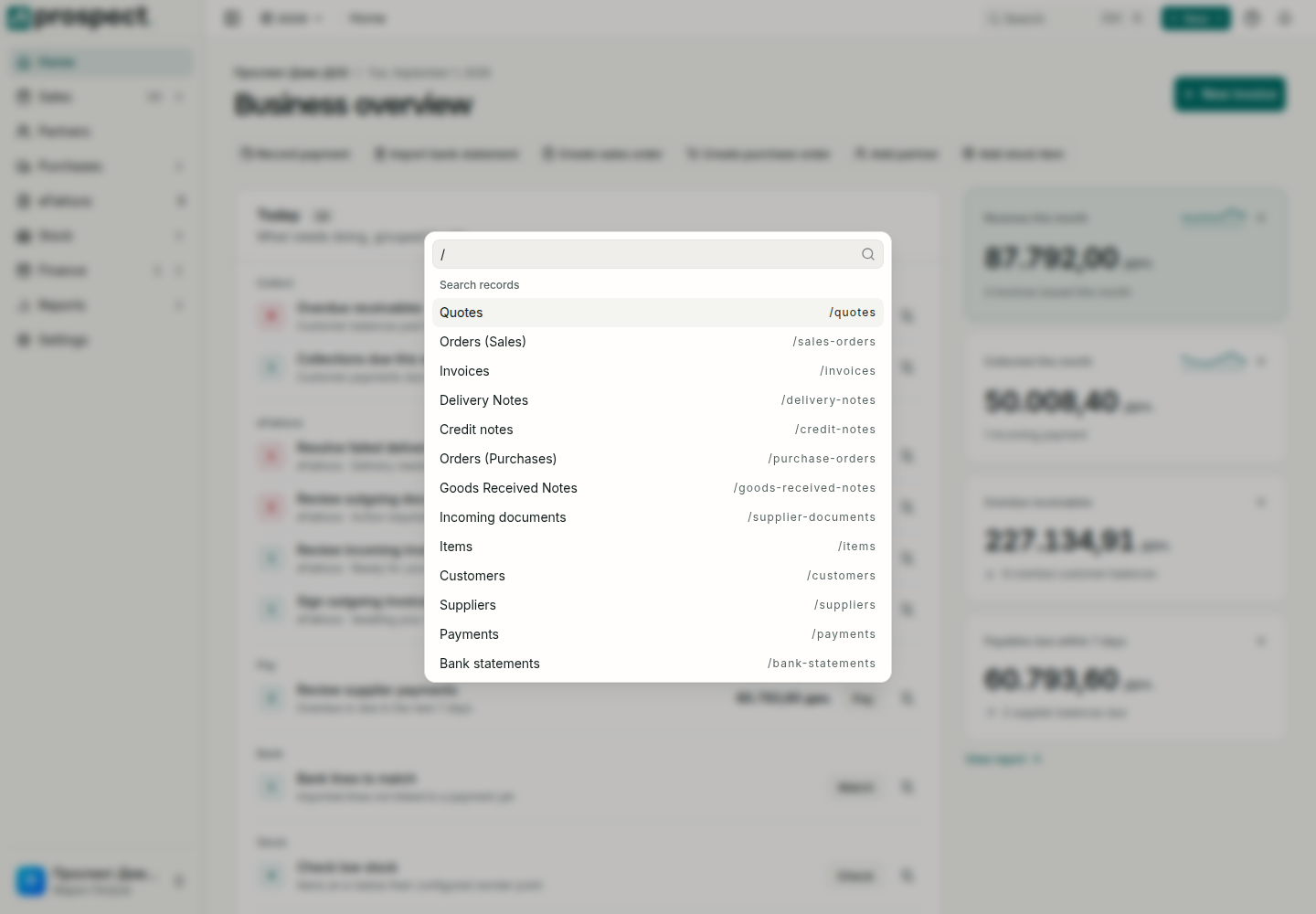
- Type / to list the kinds of records you may search, such as quotes, invoices, items and customers; choose one and type a code or name.
- Switch the company or the working year from the Context group.
The header
- + New starts any document or record you are allowed to create.
- The working year beside the breadcrumbs sets which year the lists show, or All years. It is your own choice, kept in this browser; colleagues and the company's posting year are not affected.
- Help opens this documentation or sends us a bug report.
- The pin beside a record's breadcrumb adds it to Pinned at the top of the sidebar. Records you opened recently are listed under Recent.
- Switch between companies, or add one, from the user menu at the bottom of the sidebar.
Work with lists
- Click a column header to sort; click again to reverse, a third time to clear. Hold Shift to sort by a second column.
- Use the quick filter chips beside search, Filter for more conditions, and the date presets for periods.
- Save a combination of filters, sorting, and columns as a view from Saved views. A view can be personal or shared with the team, and one view can open the list by default.
- Ticking rows brings up a bar of actions for the selection; Select all extends it to every matching record, not just the visible page.
- Invoices and items open in a side panel over the list. Use the arrow keys to move to the previous or next record, or Open for the full page.
- Export the current list from the ⋯ menu in the toolbar.
Notifications
Open the notification bell for unread reminders, or the Notifications page for the full history. Notifications may identify due invoices, low-stock conditions, tasks, recurring-invoice results, or eFaktura states. Opening a notification does not complete the underlying work; follow its link and verify the record status.
If a search result or module is missing, first check spelling and active filters, then ask an owner to review your permissions. A direct link to a restricted area displays an access-denied state.